For the next few labs you will put together a fun little Java application that can draw some amazing fractals. If you have never played with fractals before, you will be amazed at how easy it is to create some breathtakingly beautiful images. We will do this all with the Swing Framework, the Java API that allows you to create graphical user interfaces.
We will be building this application over multiple labs, so our initial version will be pretty simple, but we will build it up over the next few labs to include some neat features, like being able to save the images we generate, and being able to switch between different kinds of fractals. Both the GUI itself and the mechanism for supporting different fractals will depend on class hierarchies.
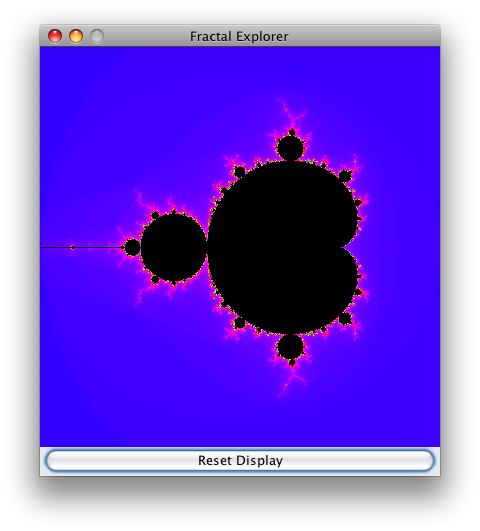
Here is a simple example of the GUI in its initial state:
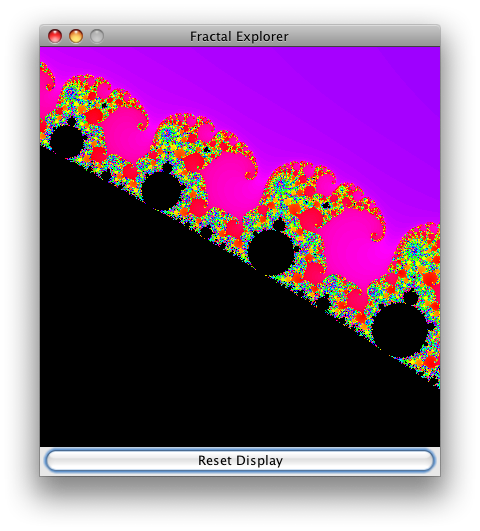
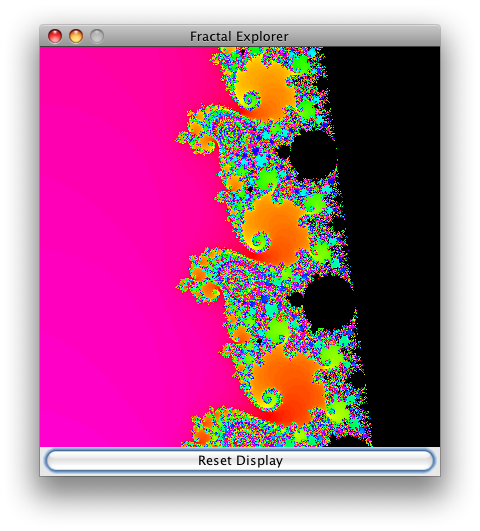
And, here are some interesting areas of the fractal: elephants and seahorses!
Before we can draw any fractals, we'll need to create a graphics widget that will allow us to display them. Swing doesn't provide such a component, but it is very easy to create one ourselves. Note that we will be using a wide range of Java AWT and Swing classes in this lab, and there is simply no way we can explain the details of each one. However, there is no need to, because the online Java API docs are very comprehensive and easy to use. Just navigate to the package of a given Java class, select the class itself, and then read the detailed information about how to use the class.
The JImageDisplay constructor should take an integer width and height, and initialize its BufferedImage member to be a new image of that width and height, and an image-type of TYPE_INT_RGB. The type simply specifies how each pixel's colors are represented in the image; this particular value means that the red, green, and blue components are each 8 bits, and they appear in the int in that order.
Your constructor must do one other thing too: it must call the parent class' setPreferredSize() method with the specified width and height. (You will have to pass these values in a java.awt.Dimension object you create specifically for this call.) This way, when your component is included in the user interface, it will actually display the entire image.
g.drawImage(image, 0, 0, image.getWidth(), image.getHeight(), null);(We are passing null for the ImageObserver, since we don't need that functionality.)
Next you will write the code to compute the very well-known Mandelbrot fractal. In order to support multiple fractals in the future, you are provided with the FractalGenerator.java source file, which all of your fractal generators will derive from. You will also notice that some very helpful operations are provided to translate from screen coordinates into the coordinate-system of the fractal being computed.
The kinds of fractals we will be working with are computed in the complex plane, and involve very simple mathematical functions that are iterated repeatedly until some condition is satisfied. For the Mandelbrot fractal, the function is zn = zn-12 + c, where all values are complex numbers, z0 = 0, and c is the particular point in the fractal that we are displaying. This computation is iterated until either |z| > 2 (in which case the point is not in the Mandelbrot set), or until the number of iterations hits a maximum value, e.g. 2000 (in which case we assume the point is in the set).
The process of plotting the Mandelbrot set is very simple: we simply iterate over each pixel in our image, compute the number of iterations for the corresponding coordinate, and then set the pixel to a color based on the number of iterations we computed. But, we will get to this in a second - for now, you simply need to implement the above computation.
The numIterations(double, double) method will implement the iterative function for the Mandelbrot fractal. You can define a constant for the "maximum iterations" like this:
public static final int MAX_ITERATIONS = 2000;Then you can refer to this value in your implementation.
Note that Java has no data type for complex numbers, so you will need to implement the iterative function using separate double components for the real and imaginary parts. (I suppose you could implement your own complex number class, but that will probably not be worth it.) You should try to make your implementation fast; for example, don't compare |z| to 2; compare |z|2 to 22 to avoid nasty and slow square-root computations. And don't use Math.pow() to compute small integer powers; multiply them out directly, otherwise your code will be very slow.
Finally, when you are iterating your function, if you hit MAX_ITERATIONS then simply return -1 to indicate that the point didn't escape outside of the boundary.
IMPORTANT NOTE: Note that the equation to iterate is: zn = zn-12 + c. That is, each iteration you are to compute zn from zn-1. Students frequently make the mistake of writing code like this:
    int numIterations(double re, double im) {
        ... (loop and stuff) ...

        re = (some expression involving re and im);
        im = (some expression involving re and im);

        ...
    }
Of course, the computation of im is incorrect since re
was changed by the previous step.
Instead, compute the value of zn into a new set of variables:
        double nextRe = (some expression involving re and im);
        double nextIm = (some expression involving re and im);

        re = nextRe;
        im = nextIm;
This will avoid bizarre results from being displayed.
Finally we are ready to begin displaying fractals! Now you will create a FractalExplorer class that allows you to examine different parts of the fractal by creating and showing a Swing GUI, and handling events caused by various user interactions.
As you can see from the above images of the user interface, the Fractal Explorer is very simple, consisting of a JFrame containing a JImageDisplay object that displays the fractal, and a single JButton for resetting the display to show the entire fractal. You can achieve this simple layout by setting the frame to have a BorderLayout, then putting the display in the center of the layout, and the reset button in the "south" part of the layout.
Provide a createAndShowGUI() method that initializes the Swing GUI: a JFrame containing a JImageDisplay object and a button for resetting the display. You should set the frame to use a java.awt.BorderLayout for its contents; add the image-display object in the BorderLayout.CENTER position, and the button in the BorderLayout.SOUTH position.
You should also give the frame a suitable title for your application, and set the frame's default close operation to "exit" (see the JFrame.setDefaultCloseOperation() method).
Finally, after the UI components are initialized and laid out, include this sequence of operations:
  frame.pack();
  frame.setVisible(true);
  frame.setResizable(false);
This will properly lay out the contents of the frame, cause it to be visible (windows are not initially visible when they are created, so that you can configure them before displaying them), and then disallow resizing of the window.
  // x is the pixel-coordinate; xCoord is the coordinate in the fractal's space
  double xCoord = FractalGenerator.getCoord(range.x, range.x + range.width, displaySize, x);
  float hue = 0.7f + (float) numIters / 200f;
  int rgbColor = Color.HSBtoRGB(hue, 1f, 1f);
Of course, if you come up with some other interesting way to color pixels based on the number of iterations, feel free to use it!
Create an inner class to handle java.awt.event.ActionListener events from the reset button. The handler simply needs to reset the range to the initial range specified by the generator, and then draw the fractal.
Once you have completed this class, update your createAndShowGUI() method to register an instance of this handler on the reset button.
Create another inner class to handle java.awt.event.MouseListener events from the display. Really you only need to handle mouse-click events, so you should derive this inner class from the MouseAdapter AWT class mentioned in the lecture 3 slides. When this handler receives a mouse-click event, it should map the click pixel-coordinates into the area of the fractal that is being displayed, and then call the generator's recenterAndZoomRange() method with the coordinates that were clicked, and a scale of 0.5. This way, just by clicking on a location in the fractal display will zoom in on that location!
Of course, don't forget to redraw the fractal after you have altered the area of the fractal being displayed.
After this class is done, update your createAndShowGUI() method to register an instance of this handler on the fractal-display component.
Once you have completed all these steps, you should be able to cruise around the Mandelbrot fractal looking at the amazing detail. If you zoom in enough you will run into two interesting issues:
You will probably also notice that it is kind of annoying how the entire display hangs while the fractal is being drawn. This is something we will explore in future labs, as well as taking advantage of multiple processors to draw our fractals much faster. But for now, once you have your Fractal Explorer completed (and well commented), you can submit your work to csman!